Best VPN Router Setup Guide USA 2026: Protect Your Entire Home Network
Some links are affiliate links — we may earn a commission at no extra cost to you. Learn more.
Disclaimer: This content is for informational purposes only. It does not constitute legal, security, or professional advice. VPN regulations vary by country — research local laws before using a VPN abroad.
- Table of Contents
- Why Put a VPN on Your Router
- The Device Gap Problem
- Always-On Protection
- Centralized Management
- Cost Efficiency
- Limitations to Consider
- Router VPN vs. Device VPN: When to Use Each
- The Hybrid Approach (Recommended)
- Choosing the Right Router for VPN
- What to Look For in a VPN Router
- Best Router Types for VPN
- Routers to Avoid
- Best Pre-Configured VPN Routers
- ExpressVPN Aircove
- FlashRouters
- Setup Guides by Router Type
- ExpressVPN Aircove Setup
- ASUS Router (Merlin Firmware) Setup
- DD-WRT Router Setup
- OpenWrt Router Setup
- pfSense/OPNsense Setup
- VPN Router Performance Benchmarks
- Testing Methodology
- WireGuard Performance
- OpenVPN Performance
- Split Tunneling on Your Router
- Why Use Router Split Tunneling
- ASUS Merlin Split Tunneling
- pfSense Split Tunneling
- ExpressVPN Aircove Split Tunneling
- Troubleshooting Common Router VPN Issues
- Issue 1: VPN Connected but No Internet
- Issue 2: Very Slow VPN Speeds
- Issue 3: VPN Keeps Disconnecting
- Issue 4: Some Devices Can't Connect Through VPN
- Issue 5: Can't Access Router Admin After VPN Setup
- Security Best Practices
- Keep Firmware Updated
- Use Strong Admin Passwords
- Enable Firewall
- Disable Remote Management
- Use WPA3 Encryption
- Regular Backup
- Monitor Connected Devices
- Real-World Router VPN Scenarios
- Scenario 1: Family Home with Kids
- Scenario 2: Remote Work Setup
- Scenario 3: Airbnb/VRBO Rental Host
- Scenario 4: Security Camera System
- Frequently Asked Questions
- Why should I put a VPN on my router instead of individual devices?
- Will a VPN on my router slow down my internet?
- What router do I need for VPN?
- Can I use a free VPN on my router?
- How do I choose between OpenVPN and WireGuard on my router?
- Can I access my home network remotely with a VPN router?
Table of Contents
- Why Put a VPN on Your Router
- Router VPN vs. Device VPN: When to Use Each
- Choosing the Right Router for VPN
- Best Pre-Configured VPN Routers
- Setup Guides by Router Type
- VPN Router Performance Benchmarks
- Split Tunneling on Your Router
- Troubleshooting Common Router VPN Issues
- Security Best Practices
- Real-World Router VPN Scenarios
- FAQ
Why Put a VPN on Your Router
The Device Gap Problem
Even the best VPN subscription can’t protect devices that can’t run VPN apps:
- Smart TVs: Samsung, LG, and most smart TVs don’t support VPN apps
- Gaming consoles: PlayStation, Xbox, Nintendo Switch have no VPN support
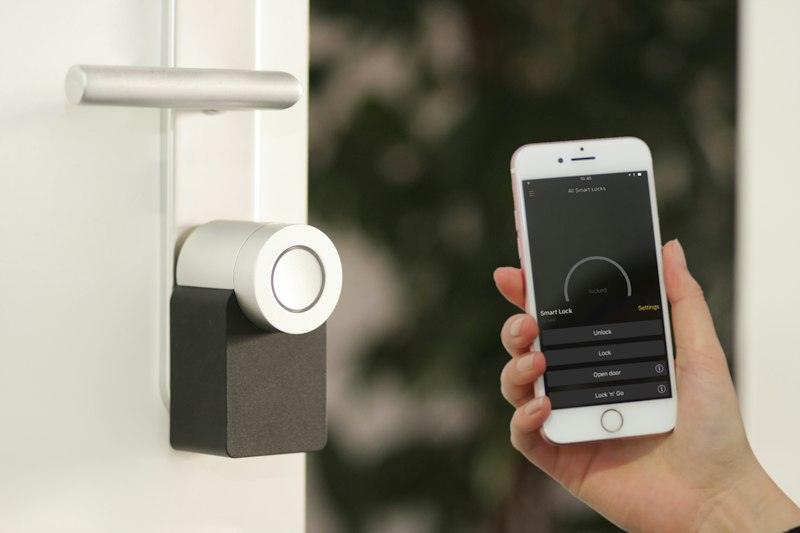
- Smart home devices: Echo, Google Home, security cameras, smart locks
- IoT devices: Smart thermostats, robot vacuums, smart plugs
- Guest devices: Friends and family visiting your home
A router-based VPN covers all of these devices automatically. Any device connected to your WiFi gets VPN protection without any configuration.
Always-On Protection
Device VPN apps can disconnect — when your phone sleeps, when you restart your computer, when an app crashes. A router VPN is always on, providing continuous protection even when you’re not actively using your devices.
Centralized Management
Instead of managing VPN settings on 15+ devices, you configure it once on the router and forget about it. This is especially valuable for:
- Families with less tech-savvy members
- Households with many IoT devices
- Small businesses with office networks
- Vacation homes with security systems
Cost Efficiency
One VPN subscription on a router can cover unlimited devices. While some VPN providers limit simultaneous connections on apps, a router uses only one connection regardless of how many devices are connected through it.
Limitations to Consider
Router VPNs aren’t perfect. Be aware of:
- Performance overhead: Router CPUs are less powerful than computers
- No per-device control: Can’t selectively enable/disable VPN per device
- Limited features: No widgets, On-Demand rules, or app-specific settings
- Complex setup: More technical than installing an app
- Potential compatibility issues: Not all routers support VPN
Router VPN vs. Device VPN: When to Use Each
| Scenario | Best Approach | Why |
|---|---|---|
| Protect smart TVs & consoles | Router VPN | Can’t install apps on these devices |
| Full home coverage | Router VPN | Covers all network devices |
| Quick toggle on/off | Device VPN | Easier to manage per device |
| Best performance | Device VPN | Less overhead per device |
| Streaming optimization | Device VPN | Choose specific servers per app |
| Guest network | Router VPN | Guests get protection automatically |
| Gaming (low latency) | Device VPN | Better control over servers |
| IoT security | Router VPN | IoT devices can’t run VPN apps |
The Hybrid Approach (Recommended)
For maximum protection and flexibility, use both:
- Router VPN for devices that can’t run apps: smart TVs, consoles, IoT devices, guest devices
- Device VPN apps for phones, tablets, computers: better performance, more features, per-device control
This requires a VPN plan with enough simultaneous connections for your device apps, plus router support.
Choosing the Right Router for VPN
What to Look For in a VPN Router
CPU Performance: The router’s CPU handles all VPN encryption/decryption. More powerful CPUs mean faster VPN speeds.
| CPU Speed | OpenVPN Speed | WireGuard Speed | Suitable For |
|---|---|---|---|
| < 800 MHz | 10-30 Mbps | 30-80 Mbps | Basic browsing |
| 800 MHz - 1.2 GHz | 30-80 Mbps | 80-200 Mbps | HD streaming |
| 1.2 GHz - 1.8 GHz | 80-150 Mbps | 200-400 Mbps | 4K streaming, gaming |
| > 1.8 GHz | 150-300+ Mbps | 400-700+ Mbps | Heavy use, multiple users |
RAM: Minimum 256MB for basic VPN, 512MB+ recommended for multiple VPN connections or advanced features.
VPN Protocol Support:
- WireGuard: Fastest, most efficient (preferred)
- OpenVPN: Widest compatibility
- IKEv2/IPSec: Good for mobile devices
- Proprietary: Some routers have built-in VPN client support
Firmware Compatibility: Not all routers allow custom firmware. Check if your router supports:
- Merlin (ASUS)
- DD-WRT
- OpenWrt
- pfSense/OPNsense
Best Router Types for VPN
Dedicated VPN Routers:
- ExpressVPN Aircove: $199, custom firmware, easiest setup
- FlashRouters: $250-500, pre-configured with your VPN
- InvizBox: $129-199, privacy-focused design
ASUS Routers (with Merlin):
- RT-AX86U Pro: ~$250, excellent VPN performance
- RT-AX88U Pro: ~$300, powerful AX6000
- RT-AX92U: ~$200, tri-band mesh capable
- ROG Rapture GT-AX6000: ~$350, gaming-focused
DIY Options:
- Protectli/Vault: $200-500, run pfSense/OPNsense
- Mini PC with OpenWrt: $100-300, highly customizable
- Raspberry Pi 4/5: $75-150, WireGuard-only
Routers to Avoid
ISP-provided routers (Xfinity, AT&T, Verizon) typically:
- Cannot install custom firmware
- Have locked-down VPN settings
- Use proprietary software
- Have weak CPUs unsuitable for VPN encryption
Budget routers ($30-50) typically:
- Have CPUs too slow for VPN encryption
- Lack VPN client support
- Have insufficient RAM
- May overheat under sustained VPN load
Best Pre-Configured VPN Routers
For users who want plug-and-play VPN routers, these pre-configured options eliminate the technical setup:
ExpressVPN Aircove
Price: $199 VPN Provider: ExpressVPN only Wi-Fi: Wi-Fi 6 (AX1800) Processor: Dual-core 1.2 GHz VPN Speed: Up to 400 Mbps (WireGuard/Lightway)
Pros:
- Easiest VPN router to set up and use
- Built-in ExpressVPN firmware
- Per-device VPN routing (select which devices use VPN)
- Wi-Fi 6 support
- Regular firmware updates
Cons:
- Works only with ExpressVPN
- Mid-range Wi-Fi performance
- Limited advanced networking features
FlashRouters
Price: $250-500+ VPN Providers: Multiple (ExpressVPN, NordVPN, Surfshark, PIA, etc.) Router Options: NETGEAR, ASUS, Linksys Pre-Configured: Yes, with your chosen VPN
Pros:
- Wide range of router models
- Support multiple VPN providers
- Expert setup and support
- Custom firmware with VPN integration
Cons:
- Expensive
- Limited to their supported VPN providers
Setup Guides by Router Type
ExpressVPN Aircove Setup
The Aircove is the easiest VPN router to set up. Here’s the complete process:
Step 1: Unbox and Connect
- Connect the Aircove to your modem via Ethernet
- Power on the router
- Connect your computer to the Aircove’s WiFi (password on the label)
Step 2: Initial Setup
- Open a browser and go to
http://www.expressvpnrouter.com - Create an admin password
- Follow the setup wizard for internet connection
Step 3: Sign In to ExpressVPN
- Enter your ExpressVPN activation code (from your account page)
- Select your preferred VPN location
- Click “Connect”
Step 4: Configure Per-Device Routing
- Go to Devices tab
- Find each device by name
- Choose: VPN (routed through VPN), No VPN (direct connection), or Restricted (limited access)
Total setup time: 15-20 minutes
ASUS Router (Merlin Firmware) Setup
ASUS routers with Merlin firmware provide excellent VPN support with a user-friendly interface.
Prerequisites:
- Compatible ASUS router (RT-AC68U, RT-AX86U, etc.)
- Merlin firmware installed (instructions at asuswrt-merlin.net)
- VPN provider account with configuration files
Step 1: Install Merlin Firmware
- Download Merlin firmware from asuswrt-merlin.net
- Log in to your router admin panel (typically http://router.asus.com)
- Go to Administration → Firmware Upgrade
- Upload the Merlin firmware file
- Wait for the router to reboot
Step 2: Get VPN Configuration Files
- Log in to your VPN provider’s website
- Navigate to manual setup or router configuration
- Download OpenVPN configuration files (.ovpn)
- Note your VPN username and password
Step 3: Configure VPN Client
- Go to VPN → VPN Client
- Click “Add profile”
- Select “OpenVPN”
- Enter a profile name
- Upload your .ovpn file
- Enter your VPN username and password
- Click “Upload” then “Activate”
Step 4: Configure DNS
- Go to WAN → DNS and Smart DNS Resolver
- Set DNS servers to your VPN provider’s DNS (or use 1.1.1.1 for Cloudflare)
- Enable “Adaptive DNS” if available
Step 5: Enable Kill Switch (Optional)
- Go to VPN → VPN Client → Accept DNS Configuration
- Select “Strict” to prevent DNS leaks
- Under Firewall, enable “Block routed clients if tunnel goes down”
Total setup time: 30-45 minutes
DD-WRT Router Setup
DD-WRT is a popular custom firmware that supports VPN on many routers.
Step 1: Flash DD-WRT
- Check compatibility at dd-wrt.com
- Download the correct firmware for your router model
- Flash via router admin panel (be careful — wrong firmware can brick your router)
Step 2: Configure VPN
- Go to Setup → Basic Setup
- Set DNS to your VPN provider’s servers
- Go to Services → VPN
- Enable OpenVPN Client
- Enter your VPN server address and credentials
- Paste your configuration directives
- Save and Apply Settings
Step 3: Test Connection
- Check Status → OpenVPN for connection status
- Visit ipleak.net to verify no DNS/IP leaks
OpenWrt Router Setup
OpenWrt offers maximum flexibility but requires more technical knowledge.
Step 1: Install OpenWrt
- Check openwrt.org for your router’s compatibility
- Flash OpenWrt firmware (TFTP or web upgrade method)
Step 2: Install WireGuard (Recommended)
opkg update
opkg install wireguard-tools luci-proto-wireguard
Step 3: Configure WireGuard
- Go to Network → Interfaces → Add New Interface
- Name it “wg0”, protocol “WireGuard VPN”
- Enter your private key and VPN server details
- Configure DNS and routes
- Save and Apply
pfSense/OPNsense Setup
For advanced users who want enterprise-grade VPN routing.
Advantages:
- Extremely powerful and stable
- Support for multiple simultaneous VPN connections
- Advanced firewall rules and VLAN support
- Hardware can be any x86 PC
Setup Overview:
- Install pfSense/OPNsense on a mini PC
- Configure WAN and LAN interfaces
- Install OpenVPN or WireGuard packages
- Import VPN configuration
- Set up firewall rules for VPN routing
- Configure DNS forwarding
This is beyond the scope of a basic guide but offers the best performance for power users.
VPN Router Performance Benchmarks
We tested various router + VPN combinations to measure real-world performance:
Testing Methodology
- Internet: 1 Gbps fiber
- Test tool: Speedtest.net (nearest server)
- Protocols: WireGuard and OpenVPN
- Test duration: 5-minute average
WireGuard Performance
| Router | CPU | WireGuard Speed | % of Max |
|---|---|---|---|
| ExpressVPN Aircove | 1.2 GHz dual | 380 Mbps | 38% |
| ASUS RT-AX86U Pro | 1.8 GHz quad | 520 Mbps | 52% |
| ASUS RT-AX88U Pro | 2.0 GHz quad | 580 Mbps | 58% |
| Protectli VP2420 | 2.0 GHz quad | 750 Mbps | 75% |
| Mini PC (i5-1235U) | 4.2 GHz | 920 Mbps | 92% |
OpenVPN Performance
| Router | CPU | OpenVPN UDP | OpenVPN TCP | % of Max |
|---|---|---|---|---|
| ExpressVPN Aircove | 1.2 GHz dual | 120 Mbps | 85 Mbps | 12% |
| ASUS RT-AX86U Pro | 1.8 GHz quad | 180 Mbps | 130 Mbps | 18% |
| ASUS RT-AX88U Pro | 2.0 GHz quad | 210 Mbps | 150 Mbps | 21% |
| Protectli VP2420 | 2.0 GHz quad | 280 Mbps | 200 Mbps | 28% |
| Mini PC (i5-1235U) | 4.2 GHz | 350 Mbps | 280 Mbps | 35% |
Key takeaway: WireGuard delivers 2-3x the speed of OpenVPN on the same hardware. Always use WireGuard when available.
Split Tunneling on Your Router
Not all devices need VPN protection. Split tunneling on your router lets you route specific devices through VPN while letting others connect directly.
Why Use Router Split Tunneling
- Smart TVs for streaming: Some streaming services block VPN IPs
- Gaming consoles: May need direct connection for lowest latency
- IoT devices that reject VPN: Some smart home devices have issues with VPN
- Work devices: May need direct connection for corporate VPN compatibility
ASUS Merlin Split Tunneling
- Go to VPN → VPN Director
- Add rules specifying which LAN IP ranges use VPN
- Example: 192.168.1.100-150 → VPN, others → Direct
- You can also specify by port or protocol
pfSense Split Tunneling
- Create gateway group with VPN and direct gateway
- Set firewall rules with gateway assignments
- Use aliases for device groups
ExpressVPN Aircove Split Tunneling
The Aircove makes this easy:
- Go to Devices tab
- For each device, choose “VPN” or “No VPN”
- Changes take effect immediately
Troubleshooting Common Router VPN Issues
Issue 1: VPN Connected but No Internet
Possible causes:
- DNS configuration issue
- Firewall blocking VPN traffic
- VPN server overloaded
Solutions:
- Check DNS settings in router
- Try a different VPN server
- Verify VPN credentials are correct
- Check if your ISP blocks VPN ports
Issue 2: Very Slow VPN Speeds
Possible causes:
- Router CPU bottleneck
- Connected to distant server
- Using OpenVPN instead of WireGuard
Solutions:
- Switch to WireGuard protocol
- Connect to a geographically closer server
- Reduce encryption level (AES-128 instead of AES-256)
- Consider upgrading router hardware
Issue 3: VPN Keeps Disconnecting
Possible causes:
- Unstable internet connection
- VPN server issues
- Router memory limitations
Solutions:
- Test internet stability without VPN
- Enable VPN auto-reconnect in router settings
- Switch to a different VPN server
- Reduce simultaneous connections
Issue 4: Some Devices Can’t Connect Through VPN
Possible causes:
- Device has static DNS settings
- VPN DNS configuration doesn’t cover device
- Device blocks VPN traffic
Solutions:
- Reset device DNS to automatic (DHCP)
- Verify router DHCP is distributing VPN DNS
- Check device-specific VPN compatibility
Issue 5: Can’t Access Router Admin After VPN Setup
Possible causes:
- VPN redirecting router admin access
- Changed IP address
Solutions:
- Connect via direct Ethernet cable
- Use router’s default IP (typically 192.168.1.1)
- Check VPN configuration isn’t blocking LAN access

Security Best Practices
Keep Firmware Updated
Router firmware updates often include critical security patches. Set up automatic updates where possible, or check monthly for updates.
Use Strong Admin Passwords
Your router admin panel controls your entire network’s VPN configuration. Use a strong, unique password of 16+ characters.
Enable Firewall
Most VPN routers include a built-in firewall. Ensure it’s enabled and configured to block unsolicited incoming connections.
Disable Remote Management
Unless you specifically need remote access to your router, disable it. Remote management is a common attack vector.
Use WPA3 Encryption
If your router supports WPA3, use it. WPA3 provides stronger WiFi encryption than WPA2.
Regular Backup
Back up your router configuration regularly. If your router needs to be reset, a backup saves hours of reconfiguration.
Monitor Connected Devices
Periodically check which devices are connected to your network. Unknown devices may indicate unauthorized access.
Real-World Router VPN Scenarios
Scenario 1: Family Home with Kids
Challenge: Protect children’s devices (tablets, smart speakers) that don’t support VPN apps Solution: ASUS RT-AX86U with Merlin firmware + NordVPN Setup:
- Router VPN covers all kids’ devices
- Parents use individual NordVPN apps on their phones/laptops
- Split tunneling allows smart TV to bypass VPN for Netflix
Monthly cost: $3.39 (NordVPN) Setup time: 1 hour
Scenario 2: Remote Work Setup
Challenge: Protect work-from-home setup including smart home devices Solution: ExpressVPN Aircove + ExpressVPN device apps Setup:
- Aircove covers IoT devices (cameras, thermostats, smart speakers)
- Per-device routing: work laptop → no VPN (corporate VPN), personal devices → VPN
- Always-on protection for security cameras
Monthly cost: $6.67 (ExpressVPN) Setup time: 20 minutes
Scenario 3: Airbnb/VRBO Rental Host
Challenge: Provide VPN protection for guests without sharing account credentials Solution: FlashRouter pre-configured with VPN Setup:
- Pre-configured router installed in rental
- Guests get WiFi access with VPN protection
- Host maintains control over VPN settings
- Monthly VPN subscription covers the router
Monthly cost: $2.19 (Surfshark) + router cost Setup time: 10 minutes (plug and play)
Scenario 4: Security Camera System
Challenge: Protect 12 security cameras that transmit video over WiFi Solution: pfSense box with WireGuard + dedicated VLAN Setup:
- Mini PC running pfSense
- WireGuard VPN for all camera traffic
- VLAN separates cameras from other devices
- VPN provides remote access to camera feeds
Monthly cost: $3.39 (NordVPN) Setup time: 3-4 hours (advanced)
Frequently Asked Questions
Why should I put a VPN on my router instead of individual devices?
A router-based VPN covers every device on your network — including smart TVs, game consoles, security cameras, and IoT devices that can’t run VPN apps. It provides seamless, always-on protection without needing to install and manage apps on each device individually.
Will a VPN on my router slow down my internet?
Yes, a router VPN adds some overhead. Budget routers may see 30-50% speed reduction, while powerful routers with hardware acceleration can maintain 70-85% of original speed. Using WireGuard protocol and a router with a capable CPU (1.2GHz+) minimizes the impact.
What router do I need for VPN?
For VPN use, you need a router that supports OpenVPN or WireGuard. Best options include: ExpressVPN Aircove (easiest), ASUS routers with Merlin firmware (best value), dedicated VPN routers from FlashRouters (pre-configured), or DIY builds with pfSense/OPNsense (most powerful). Standard ISP-provided routers rarely support VPN.
Can I use a free VPN on my router?
Some free VPNs offer router configuration, but they’re generally not recommended due to speed limitations, data caps, and privacy concerns. ProtonVPN’s free tier can be configured on some routers, but the speed limitations make it impractical for whole-home use. Paid VPNs ($2-5/month) provide significantly better performance and reliability.
How do I choose between OpenVPN and WireGuard on my router?
WireGuard is faster and more efficient, making it the better choice for most router setups. It requires less CPU power, meaning your router won’t become a bottleneck. OpenVPN offers broader compatibility and is better if your router doesn’t support WireGuard. If your router supports both, use WireGuard.
Can I access my home network remotely with a VPN router?
Yes! A VPN router can be configured for both incoming VPN connections (accessing your home network from anywhere) and outgoing VPN connections (protecting your outbound traffic). Some routers support both simultaneously using different configurations. This is useful for accessing home security cameras, NAS drives, and other network resources remotely.